How to Sync Subtitles That Are Early or Late
Subtitles out of sync? Learn why it happens, how to find the right offset in under a minute, and how to fix timing in the player or permanently in the file.

Зміст
01Why subtitles go out of sync02Step 1: is it a constant offset or drift?03Step 2: shift the timing in the player04A quick way to find the exact offset05Fixing the file permanently06Tips for subtitles that stay in syncFew things spoil a film faster than subtitles that arrive half a second before the line is spoken, or linger after it. The good news: most timing problems are a constant offset, and you can sync subtitles in seconds without editing anything.
Why subtitles go out of sync
- A different version of the video. The file was timed for a release with a longer intro, a studio logo or a recap.
- A different frame rate. Subtitles made for 25 frames per second on a 23.976 video slowly drift.
- Cuts and ad breaks. A subtitle file from the broadcast version does not match the uncut version, or the other way round.
- Rare player delays, for example with a Bluetooth headset, where sound arrives after the picture.
The first case is by far the most common, and it is the easiest to fix.
Step 1: is it a constant offset or drift?
Watch two lines: one near the start and one 20 minutes later.
- If both are off by the same amount, it is a constant offset. Shift the timing.
- If the gap grows over time, it is drift caused by a different frame rate. You need to retime the file (see the end of this guide).
Step 2: shift the timing in the player
In BetterStream you can fix a constant offset while you watch:
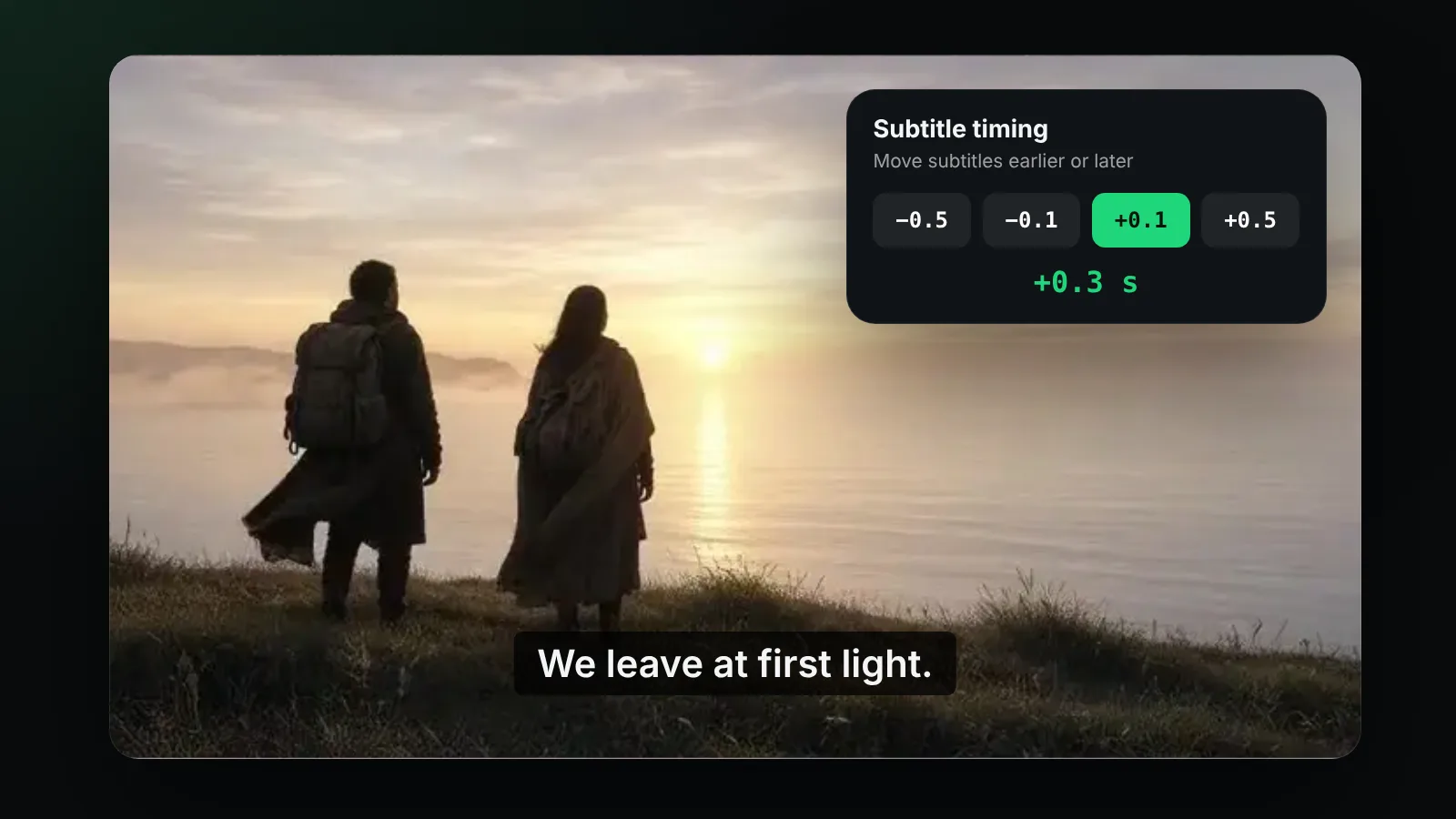
- Open the subtitles menu and choose Timing.
- If the text appears before the voice, move subtitles later (+). If it appears after, move them earlier (−).
- Use 0.5 s steps to get close, then 0.1 s steps to fine-tune.
- Close the panel. The new offset applies straight away.
A quick way to find the exact offset
- Pause just as a character starts a short, clear line.
- Note whether that line is already on screen, or still missing.
- Play a few seconds and adjust in half-second steps until the line appears with the first syllable.
- Finish with 0.1-second steps on the next clear line.
Most films are fixed in under a minute. Short, punchy lines (a name, "Yes", "Run!") are the easiest to judge.
Fixing the file permanently
If you will watch the same video again, or share the subtitles, save the corrected timing into the file:
- Constant offset: subtitle editors have a "shift times" or "sync" function that moves every cue by the same amount.
- Drift: use the editor's "change frame rate" option (for example from 25 to 23.976 fps), or set two sync points, one early and one late, and let the editor stretch the timing in between.
- Always keep a copy of the original file.
Because SRT and VTT are plain text, you can also adjust a few cues by hand; our guides to the SRT file and the VTT file show the timestamp formats.
Tips for subtitles that stay in sync
- Pick a subtitle file made for the same release and length as your video.
- Check that the video length matches the last subtitle time, give or take a minute of credits.
- Prefer subtitle tracks that come with the stream: they are made for that exact version.
Frequently asked questions
How do I delay subtitles?
Move them later with the + buttons in the timing panel. Use 0.5-second steps first, then 0.1-second steps.
Why are my subtitles out of sync only after a while?
That is drift, usually from a frame-rate difference. Retime the file with a subtitle editor.
Does changing the timing in BetterStream change my file?
No. The offset applies while you watch; your file stays as it is.
Can I sync subtitles that come with the stream?
Yes. The timing controls work for stream tracks and for files you load yourself.
More subtitle help: best font for subtitles and the help center.